How to Statically Analyze Blueprints
This post covers the basics of Blueprint static analysis.
Introduction
Blueprints in Unreal Engine offer a great way for programmers or technical designers to write gameplay code. They are decently easy to understand and get prototypes done quickly. That said, Blueprints introduce a lot of issues, for which they are also getting replaced by Verse in UE6.
Sometimes, Blueprint users create something that might result in unnecessary performance overhead, memory bloat or undesired behaviour. I was wondering whether some of these problems could be detected at Blueprint compile-time and reported back to the user. The answer is: yes.
What is static analysis?
I quickly want to talk about what static analysis means and how it connects to Blueprints.
Generally speaking, static analysis is a routine you run without executing the program. It usually examines source code, bytecode, binary files or in my case: Blueprint graphs. Static analysis tries to look for security vulnerabilities, bug risks, but also for code quality and standards (with analyzers like cargo-clippy or clang-tidy).
In other words, it tries to detect possible problems and report them before they become one. In even other words for Blueprints, I try to scan for usual culprits that can cause issues, before they become real issues in builds or even shipped games.
With the introduction out of the way, I would like to talk a bit more about the approach I took for this and how a Blueprint static analyzer can be created.
Reading Blueprints graphs
To perform analysis, we first need to see how it's possible to read Blueprint graph data and traverse its execution flow. I will quickly walk you through the data types that hold this information.
To set the ground, let's say we have a UBlueprint* and the goal is to print all of the nodes.
Graphs
A Blueprint is usually comprised of multiple graphs (UEdGraph). This includes all of the function graphs, macro graphs and so-called ubergraphs, which is where we can find the EventGraph. The graph holds all the node information and exposes them using the Graph->Nodes field.
If we want to reach our goal of printing all the nodes within a Blueprint, we essentially want to get all the graphs and get all the nodes within the graph. This looks like this in code:
// ... includes omitted for brevity

void PrintAllNodes(const UBlueprint* Blueprint)
{
    if (!Blueprint)
    {
        return;
    }

    TArray<UEdGraph*> Graphs;
    Blueprint->GetAllGraphs(Graphs);

    for (const UEdGraph* Graph : Graphs)
    {
        if (!Graph)
        {
            continue;
        }

        UE_LOG(LogTemp, Log, TEXT("Graph: %s (%d nodes)"), *Graph->GetName(), Graph->Nodes.Num());

        for (const UEdGraphNode* Node : Graph->Nodes)
        {
            if (!Node)
            {
                continue;
            }

            UE_LOG(LogTemp, Log, TEXT("  Node: %s | %s"),
                *Node->GetName(),
                *Node->GetNodeTitle(ENodeTitleType::ListView).ToString());
        }
    }
}
This gives us a clear picture of which nodes a graph holds, but we usually want to do more with the nodes than just print their name.
Nodes
During the analysis, we definitely want to read each node's pins and connections. This can be easily done through the UEdGraphNode class.
All of this information is stored in the Node->Pins field, which is an array of UEdGraphPin*. If we iterate through all of the pins of a node, we can see which direction a pin goes (EGPD_Output or EGPD_Input) and what it's linked to.
for (const UEdGraphPin* Pin : Node->Pins)
{
    if (Pin->Direction != EGPD_Output) continue;

    for (const UEdGraphPin* Linked : Pin->LinkedTo)
    {
        const UEdGraphNode* Next = Linked->GetOwningNode();
    }
}
The UEdGraphPin.LinkedTo field is an array, which means checking whether a pin is disconnected is as simple as this:
bool bDisconnected = Pin->LinkedTo.Num() == 0;One more important field is the UEdGraphPin.PinType.PinCategory, which allows us to figure out if a pin is an exec pin.
if (Pin->PinType.PinCategory != UEdGraphSchema_K2::PC_Exec) continue;Checking node types
While traversing, I needed to check which node a UEdGraphNode actually is. To do this, we only really need a Cast<T> to its corresponding K2Node_XXX class. This works, since all of the K2Node classes inherit from the base UEdGraphNode.
if (const UK2Node_DynamicCast* DynamicCast = Cast<UK2Node_DynamicCast>(Node))
{
    // This is a DynamicCast node
}
Additionally, these classes expose way more information than the base. For example, the UK2Node_DynamicCast exposes a handy function to get the invalid cast pin.
DynamicCast->GetInvalidCastPin();Analysis context
The analysis context is a concept I created to get more context when running rule checks. Simply speaking, it answers questions such as: Is this node under Tick?, Is this node dead?, Is this node in a loop?.
I solve this by storing a TMap<FGuid, TSet<ENodeFlag>> NodeData map. This gets populated during the BuildContext step and stored for later lookups.
ENodeFlag
To get the idea, this is what information the ENodeFlag holds.
enum class ENodeFlag
{
    InTick = 0,
    InALoop = 1
};
These turned out to be the only two flags that I actually ended up needing for many rules.
Context build
The context build step involves these substeps.
Entry point gather
I go through all Ubergraphs and FunctionGraphs and try to cast either into a UK2Node_Event or UK2Node_Entry. I return these in a TSet for every graph.
Graph traversal
Once all of the entry points are discovered, I can traverse them and take notes of each node's context.
It is essentially a DFS walk, which looks something like this:
WalkNode = [&WalkNode, this](const UEdGraphNode* Node, TSet<ENodeFlag> Inherit, FAnalysisContext& Context)
{
    // ... re-entry checks and init

    TMap<uint8, TSet<ENodeFlag>> PinModifiers;

    if (const UK2Node_Event* EventNode = Cast<UK2Node_Event>(Node))
    {
        if (EventNode->GetFunctionName() == "ReceiveTick")
        {
            Inherit.Add(ENodeFlag::InTick);
        }
    }

    if (const UK2Node_MacroInstance* MacroInstance = Cast<UK2Node_MacroInstance>(Node))
    {
        FString Name = MacroInstance->GetMacroGraph()->GetName();
        if (Name.Equals("ForLoop") || Name.Equals("ForEachLoop") || Name.Equals("WhileLoop"))
        {
            // Pin 0 is the Loop Body, which means that we want to flag all of the nodes under there with InLoop.
            // From what I've tried, the pin order seems to be consistent, I hope it doesn't hurt me later.
            PinModifiers.Add(0, { ENodeFlag::InALoop });
        }
    }

    Context.AddFlags(Node->NodeGuid, Inherit);

    auto NextNodes = GetNextExecNode(Node);
    for (auto& NextNode : NextNodes)
    {
        TSet<ENodeFlag> Flags = Inherit;
        if (PinModifiers.Contains(NextNode.PinIndex))
        {
            Flags.Append(*PinModifiers.Find(NextNode.PinIndex));
        }

        WalkNode(NextNode.Node, Flags, Context);
    }
};
This checks whether a node is an EventTick (or a loop, ...) and then flags it accordingly. Thanks to recursion, any subsequent nodes following this one will be flagged as well.
Flag lookups
When a rule needs to look up info for a node, it's a simple function call.
bool bInHotPath = Context.HasFlag(Node->NodeGuid, ENodeFlag::InTick)
                  || Context.HasFlag(Node->NodeGuid, ENodeFlag::InALoop);
Function effects
Function effects solved a similar problem as the analysis context. They gave more information about what calling a function causes. I'll try to explain why this was helpful in a practical example.
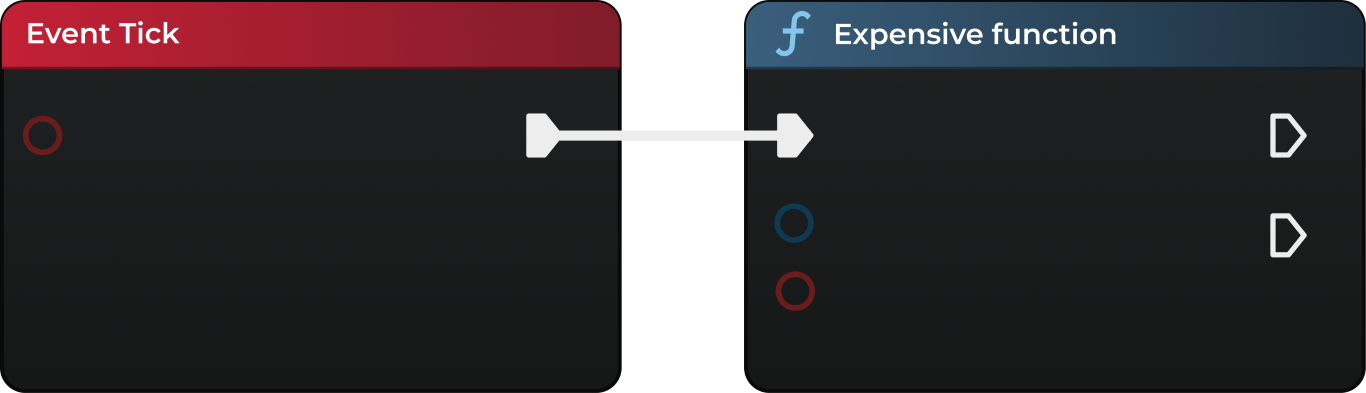
Function Effects Example
With the analysis context, this would tell me that the call of Expensive function does indeed happen under Tick, but I had no info about the effect of this function. This is where function effects come in clutch.
I created a new EFunctionEffect enum, which covers the necessary function effects.
enum class EFunctionEffect
{
    ExpensiveActorQuery = 0,
    Latent,
    DebugSideEffect
};
With this, I can simply define a bunch of known functions, which cause these effects.
void FEffectResolver::BuildKnownEffects()
{
    // ... checks

    auto AddEffect = [&](UClass* Class, const TCHAR* Name, EFunctionEffect Effect)
        {
            if (UFunction* Func = Class->FindFunctionByName(Name))
            {
                FFunctionSummary& Summary = KnownEffects.FindOrAdd(Func);
                Summary.Effects.Add(Effect);
                Summary.StackTrace.Add(Effect, { Func->GetName() });
            }
            else
            {
                UE_LOG(LogBPCheckCore, Warning, TEXT("KnownEffects: Function %s could not be resolved."), Name);
            }
        };

    UClass* Sys = UKismetSystemLibrary::StaticClass();
    UClass* Gameplay = UGameplayStatics::StaticClass();

    AddEffect(Sys, TEXT("Delay"), EFunctionEffect::Latent);
    AddEffect(Sys, TEXT("RetriggerableDelay"), EFunctionEffect::Latent);
    AddEffect(Gameplay, TEXT("GetAllActorsOfClass"), EFunctionEffect::ExpensiveActorQuery);
    AddEffect(Gameplay, TEXT("GetActorsOfClass"), EFunctionEffect::ExpensiveActorQuery);
    AddEffect(Gameplay, TEXT("GetAllActorsOfClassWithTag"), EFunctionEffect::ExpensiveActorQuery);
    AddEffect(Gameplay, TEXT("GetAllActorsWithInterface"), EFunctionEffect::ExpensiveActorQuery);
    AddEffect(Sys, TEXT("PrintString"), EFunctionEffect::DebugSideEffect);
}
Whenever I need to get an effect of a certain function, I follow these steps:
- Build known effects (if not done before)
- Check cache whether computed before
- If not cached, compute the effect
FFunctionSummary FEffectResolver::EffectsOf(UFunction* Fn)
{
    BuildKnownEffects();

    if (!Fn) return {};
    if (KnownEffects.Contains(Fn))
    {
        return *KnownEffects.Find(Fn);
    }

    if (EffectsCache.Contains(Fn))
    {
        return *EffectsCache.Find(Fn);
    }

    if (!Fn->IsInBlueprint())
    {
        EffectsCache.Add(Fn, {});
        return {};
    }

    return ComputeBPFunctionEffects(Fn);
}
The ComputeBPFunctionEffects itself simply goes through the function and performs the same recursive EffectsOf call on all CallFunction nodes inside it.
Rules
With all this base in place, we are ready to actually write rules. In my terminology, you check for issues in rules and then raise suggestions from them.
All of my rules stem from a FAnalysisRule base class, which exposes three functions to check at node-level, graph-level and Blueprint-level.
class FAnalysisRule
{
public:
    FAnalysisRule() = default;
    virtual ~FAnalysisRule() = default;

    virtual void Check(const UEdGraphNode* Node, TArray<FSuggestionContext>& Suggestions, const FAnalysisContext& Context) {}
    virtual void Check(const UEdGraph* Graph, TArray<FSuggestionContext>& Suggestions, const FAnalysisContext& Context) {}
    virtual void Check(const UBlueprint* Blueprint, TArray<FSuggestionContext>& Suggestions, const FAnalysisContext& Context) {}
};
Every rule then gets these functions called at a respective point during the analysis. I call Blueprint-level first, graph-level next and node-level last. If a suggestion is detected, it is pushed up through the Suggestions sink.
Examples
This is how it looks for the Latent Node in Loop rule.
void FLatentNodeInLoopRule::Check(const UEdGraphNode* Node, TArray<FSuggestionContext>& Suggestions, const FAnalysisContext& Context)
{
    if (!Context.HasFlag(Node->NodeGuid, ENodeFlag::InALoop)) return;

    if (const UK2Node_CallFunction* Call = Cast<UK2Node_CallFunction>(Node))
    {
        UFunction* TargetFn = Call->GetTargetFunction();

        FFunctionSummary Summary = Context.EffectsOf(TargetFn);

        if (Summary.Effects.Contains(EFunctionEffect::Latent))
        {
            FSuggestionContext Ctx = FSuggestionContext(ESuggestion::LatentNodeInLoop, Call->NodeGuid);
            Ctx.StackTrace = Summary.StackTrace.FindRef(EFunctionEffect::Latent);

            Suggestions.Push(Ctx);
        }
    }
}
I first check whether the node is even in a loop, to see whether to perform an early out. After that, I can check if the node is actually a CallFunction and whether it's latent (using the EffectsOf function). If all things go through, I raise the LatentNodeInLoop suggestion.
Let's see the Graph Node Count rule for a different example.
void FGraphNodeCountRule::Check(const UEdGraph* Graph, TArray<FSuggestionContext>& Suggestions, const FAnalysisContext& Context)
{
    FString GraphName = Graph->GetName();
    int32 GraphSize = Graph->Nodes.Num();

    if (GraphSize > Context.Settings->MaxGraphNodes)
    {
        Suggestions.Push(FSuggestionContext(ESuggestion::GraphSize, MakeWeakObjectPtr<const UEdGraph>(Graph)));
    }
}
I could show more examples, but the idea stays the same. I check at a certain level, work with the analysis context and raise suggestions. This approach provided me with a ton of flexibility.
Reporting results
I deliberately keep this section a bit more vague, since it could quickly spiral into a Slate code dump. However, I still want to mention certain parts.
I keep all suggestion info in the SuggestionContext struct, which allows me to properly pinpoint the suggestion for the editor code.
USTRUCT()
struct FSuggestionContext
{
    GENERATED_BODY()

    FSuggestionContext() = default;

    FSuggestionContext(ESuggestion S, FGuid Node)
    {
        Suggestion = S;
        NodeGuid = Node;
        Scope = ESuggestionScope::Node;
    }

    FSuggestionContext(ESuggestion S, TWeakObjectPtr<const UEdGraph> G)
    {
        Suggestion = S;
        Graph = G;
        Scope = ESuggestionScope::Graph;
    }

    FSuggestionContext(ESuggestion S, ESuggestionScope Sc)
    {
        Suggestion = S;
        Scope = Sc;
    }

    ESuggestion Suggestion = ESuggestion::None;
    ESuggestionScope Scope = ESuggestionScope::None;
    FGuid NodeGuid;
    TWeakObjectPtr<const UEdGraph> Graph;
    FString Subject;
    TArray<FString> StackTrace;
};
All of this data then allows me to render a custom Slate window with double-click navigation to nodes and all the necessary information.
Blueprint Compiler Extension
All of this code was run from a Blueprint Compiler Extension, which allowed me to inject my own compilation step into the Blueprint compiler.
A BlueprintCompilerExtension can be created by inheriting from the UBlueprintCompilerExtension class.
UCLASS()
class BPCHECKEDITOR_API UBPCompilerExtension : public UBlueprintCompilerExtension
{
    GENERATED_BODY()

protected:
    virtual void ProcessBlueprintCompiled(const FKismetCompilerContext& CompilationContext, const FBlueprintCompiledData& Data) override;
};
Registering it involves calling a function on the FBlueprintCompilationManager.
UBPCompilerExtension* Extension = NewObject<UBPCompilerExtension>();
FBlueprintCompilationManager::RegisterCompilerExtension(UBlueprint::StaticClass(), Extension);
Finally, we can access the target Blueprint through the CompilationContext.Blueprint field, which allows us to call our analyze function.
Closing words
I want to say a few final words about the way this project went.
Coming into this, I was a bit daunted by the amount of things that would have to be done. This was only amplified by my lacking Unreal Engine knowledge. I was mostly afraid of not knowing which rules to write, as I did not fully understand what's actually wrong to do in Blueprints.
After working on BPCheck, I definitely have a better idea about the usual causes of performance and/or architectural issues in Blueprints. It was still difficult to produce reasonable rules, but I think I got a good batch out and I can always come back and improve on this.
Writing analyzers is fun. Working with a limited context of missing all runtime information is hard at times, but has to be dealt with. I'm excited to share this extension with my teammates in the next team projects and see if it actually helps.
I definitely learned a lot in terms of static analysis, tree walking and context build. This is knowledge that could definitely be used outside of Unreal Engine, maybe in some proprietary engines or other tools.
Thank you for reading and see you again in the next one.

This article has been written as part of my project at BUas